
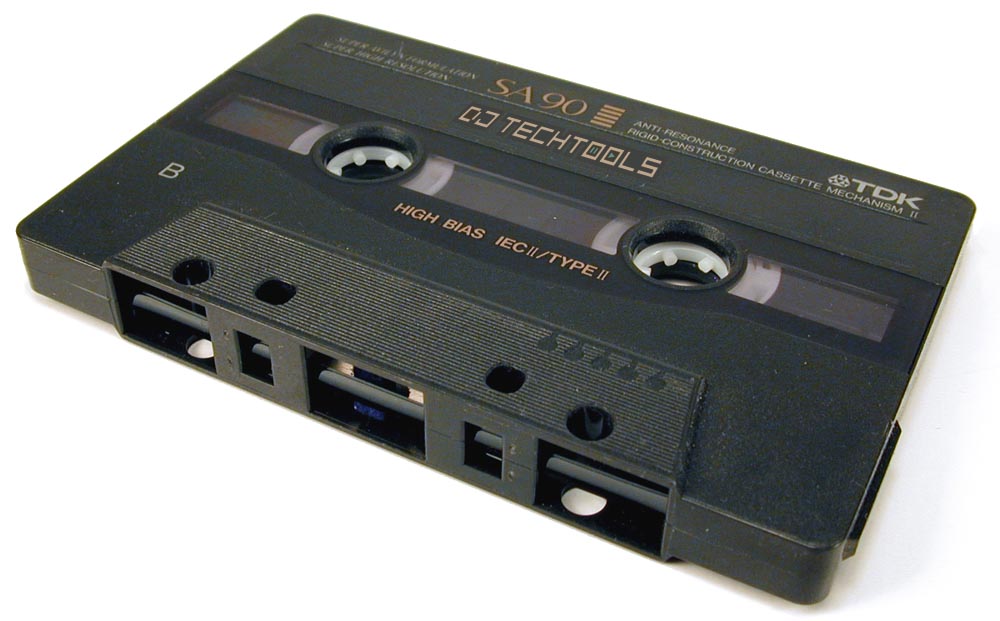
 Mixtapes are still one of the best ways to hone your DJing skills and promote yourself. This guide will hold your hand through the process and have you making professional sounding mixes in no time! While cassette tapes are now things that you might only dig out to show your kids how you used to listen to music on the move before the MP3 player was invented, the term “mixtape” lives on. Originally a collection of unmixed tracks recorded to a tape, usually to give to friends or a boy/girl that you were trying to impress, then a term for a mixed DJ set recorded to a tape, the mixtape took another step up the evolutionary ladder in the early 1990s with the availability of affordable multitrack recorders. Back in 1994, I bought a couple of mixtapes via an advertisement in a hip-hop magazine. One of these mixtapes was called “Demolition Pumpkin Squeeze Muzik” by DJ Qbert. This, along with another mixtape called “Comprehension” by DJ Babu of the World Famous Beat Junkies, were the first multitracked mixes I ever heard and they opened my eyes (and ears) to a world of possibilities.
SOFTWARE AND GEAR SET UP
First off, you’re going to need some multitrack recording software. I use Adobe Audition, but Audacity is a good free option that’s available for Windows, OS X and Linux. Connect an output from your mixer to the line in on your computer’s sound card, and connect the output from your sound card to your amp, powered speakers or headphones. Connecting things this way will allow you to play back what you’ve already recorded and add to it, while being able to hear what you’re adding as you’re doing it live. If you’re mixing solely in software, you’ll need to use an application that can route the audio from your chosen mixing application into the multitrack recording software. Examples of this are Soundflower for OS X, and Virtual Audio Cable for Windows. GETTING FAMILIAR WITH MULTITRACK RECORDING. As I mentioned, Adobe Audition is my software of choice, so any screen shots you see here will feature Audition, but I realise that many people will be using different software. While I will refer to Audition frequently, all of the information in this article will easily translate over to a different application.
- You can record an entire mix as you normally would, then edit it and add to it.
- You can record one song at a time and build up the mix in stages.

EDITING AND WORKING WITH AUDIO
There are a handful of common tasks that you will use a lot when working with blocks of audio:- Cutting up audio blocks into parts and moving them around.
- Locking audio blocks in place so they can’t be moved.
- Duplicating audio blocks to create loops.
- Grouping audio blocks together.
- Adjusting the volume and/or EQ.
- Deleting or muting audio blocks and layers.
- Using the undo button!
- Adding effects or panning the audio left or right (discussed below).
ADDING PANNING AND EFFECTS
One of the great things about multitracking is that you can experiment with adding panning and effects after you’ve already recorded the audio. You can try out different ideas and if an idea doesn’t work, it’s easy to undo it. In Audition, for example, there are buttons on the main toolbar that display “envelopes”. There are envelopes for volume, panning, effects and tempo. Once a particular envelope is activated, it causes a coloured line to be displayed on all of your audio blocks which you can then drag up and down. For example, if you enable panning envelopes, a blue line runs down the centre of all audio blocks. Dragging the line up pans the audio to the left. Dragging it down pans the audio to the right. You can click on the line at any points you like and drag it up or down to apply the panning. The more you drag the line up or down, the more the audio is panned in that direction.
BOUNCING TRACKS DOWN AND EXPORTING
Bouncing tracks down can free up space if your project is getting a little out of control in terms of the number of tracks and effects you’re using. It can reduce the amount of resources used up by your system too. Basically, what you’re doing is mixing down everything you’ve done so far to a single file. You can then insert that file into track 1 of a new session and carry on working on it. Any effects, panning etc. that you applied to individual blocks or tracks will obviously be present in the bounced down version. Only do this if you are absolutely sure that you’re happy with what you’ve done so far, as your project will no longer be spread over multiple tracks and therefore you can’t edit individual blocks of audio, tracks, effects etc!Once your project is complete, I would recommend listening through it a couple of times just to make sure that you’re happy with everything. If you are, you can export it to a single file. I export to WAV as that retains audio quality and I can easily convert it to MP3 later on if I want to share the mix on the web. If you want to split your mix into separate tracks to burn to a disc, you can. There are guides available on the web for the various pieces of recording software, for example, here’s how to split a long mix into separate tracks with Audacity: http://audacity.sourceforge.net/help/faq?s=files&i=split


No comments:
Post a Comment