Showing posts with label Production. Show all posts

Friday, October 26, 2012

Ableton Push: Integrated, Touch-Sensitive Hardware Control for Live


Now, Ableton is doing its own hardware. Sure, Ableton’s logo was on the Akai APC40 and Novation Launchpad, and yes, “engineering by Akai” is stamped on the Push. But make no mistake: this is really the first Ableton hardware, and it shows.
Push is a grid controller with extra keys and encoders for navigating features. It shows the influence of devices like the monome (and divides up that grid like the Pages and 7up patches from the community). But it also includes controller features that are specifically integrated with Live, recalling custom controllers used by Monolake.
Ableton pitches this as a hardware “instrument,” but it’s both instrument and controller. And Ableton says it solves the problem of “how to make a song from scratch,” but it also solves the problem of how to perform with Live. In fact, it solves the problem of how to make a song from scratch while performing, coupled with some new Live 9 clip recording enhancements that work with other controllers, too. In typical Ableton fashion, then, it doesn’t really matter whether “live” means “live onstage” or just “working faster in the studio.”
As with Live 9, I got to spend some time playing Push and talking to the developers who worked on it last week at an event with other press, partners, and artists at Ableton’s offices. The hardware is near-final, but software is still in development, so some features are subject to change.
You can read the specs anywhere, so let’s list the biggest surprises (for me, anyway):
  • The pads sense velocity and pressure – no more grids limited to on/off only.
  • A ribbon controller along the side adds additional control and expression.
  • All this light and color runs on bus power. (Awesome feature: plug in external power, and everything gets brighter.)
  • It’s hacker-friendly: USB class-compliant (hello, Linux, iOS), and fully controllable via MIDI. (You can evidently even use the displays via SysEx.)
  • You do get some footswitch inputs, too. (someone asked about this in comments, so it must be a surprise)


You get 64 velocity-and pressure-sensitive multi-colored pads, plus eleven touch-sensitive endless encoders.
As an “instrument,” Push maps to an isomorphic pitch layout. It’s I think the first time we’ve seen such a layout in mainstream, non-niche hardware (unless you count iPad apps). That makes the grid map usefully to different keys and harmonic structures, and it’s there by default – no extra work needed. In a feature I hope survives from the prototype to the final version, there’s even feedback on equivalent pitches as you play.
The advantage of isomorphic layouts is, once you learn a pattern, transposition is easy, and chords and harmonies are generally easier to find. (A guitar, for instance, is actually isomorphic; a piano is not. I like pianos, and you can learn to transpose on them, but for learning a new instrument, this is an ideal choice.) At the Ableton demo last week, we got to see “Giant Steps” played in all keys.
And, of course, you get all of this with pressure, mapped to aftertouch. If you can accommodate the grid layout, that could make Push a really expressive instrumental controller, particularly with the ribbon controller. The challenge may be fatigue playing pads; some velocity sensitivity adjustment will be necessary. But the pads felt good even on a prototype unit. Yes, they’re Akai-built pads.
A look at the isomorphic pitch layout, with blue lights indicating equivalent pitches.
As a “controller,” Push does all the business with clips you’d expect. What seemed impressive in early demos was how tightly it could integrate with the production workflow. You can quickly drop into recording a clip or overdub settings, adding to a track as you go.
There are various clever features. For instance, since the color scheme could be potentially confusing, lights pulse to show active clips for playback and recording. A display shows you the remaining time in clips. And crucially, you can navigate Live, and select clips without launching them. The APC and Launchpad for me never quite got to the stage where I could hide the computer and still use Live; it looks like Push just might.

We’ll look closer soon at how these mappings work, but there were already impressive examples in which Push was running step sequencers, triggering and recording clips, and playing instrumental solos, all right out of the box – no fancy Max for Live patching required.
If fancy Max for Live patching is what you want, you can do that, too. You can “hijack” everything Push does as far as Live control and customize it, with complete control over the hardware and the way the software responds. There’s also a “user” mode, as with Launchpad, which you can assign to your own tools (like a plug-in, for instance), then switch between them. Right now, you can’t use more than one Push in controller mode, though you could presumably set the second to “user” mode and map it separately.
Ableton showed off the Push at a private demo event last week, demoing it by pulling it out of a small backpack to illustrate how portable it is. The hardware really looks beautiful and feels luxurious, more so than any of this class of controller we’ve seen previously, on first impression. On pads, it will have to live up to the fantastically-responsive pads on the new Native Instruments Maschine, but of course you get 64 instead of 16, and the Push appears to be more versatile as a Live controller. (One Push, one Maschine may be popular among those who can afford both.)
Weight: 2990g / 6.59 pounds.
Cost: USD 599 / EUR 499, including Ableton Live 9 Intro.
As with Live 9, Push is promised for first quarter of 2013. And you’ll need some version of Live 9 to use it – at least with its native control features, which are kind of the point. (Well, though I do expect some hacker to do something ridiculous with this and Renoise. Let’s get on that.)
(You’ll still need separate hardware for audio, but I’d choose compactness and bus power over that, anyway; I’ve got an audio interface.)
No one controller can suit everyone, but I have to say, Push looks like it makes a reasonable set of compromises. Fortuantely, there’s nothing stopping hackers from doing their own, similar controls in Live 9 if they desire. But for those who do want something off the shelf, Push is a big leap forward. We’ll be testing it as it becomes available, and then can look more closely at how mappings work.


As with Launchpad and APC, there’s a logical mapping of Session View to the controller. (Arrange View is actually not really a focus.) Unlike the past hardware efforts, though, you have enough controls on the device that you should be able to hide your laptop away and still make music or perform.

Credit : Create Digital Music

Tuesday, September 27, 2011

Tech : Check out the Steinberg CMC modular USB controllers

The mere mention of the word modular is usually enough to get any self-respecting music geek hot under the collar, so when Steinberg announced its latest stackable collection of dedicated USB music production controllers, hardware fans will have felt a collective twitch of excitement. Specifically built for its much loved Cubase and Nuendo programs, each of the six units has its own speciality, and has been designed to let you get your tactile funk on, be it mixing melodies or mashing in beats. Plonk up to nine of these sleek, luminous lovelies on your desk for the music control surface of your dreams, but with no mention of price just yet, you might want to keep the plastic wrapped up until they hit the stores in October.

Press Release

Steinberg CMC series press release

Steinberg is proud to present a new range of USB controllers that can be individually combined to form a custom-made Cubase control system. Comprising six slim yet powerful units, the CMC series has all the control options you're looking for - whether you are recording, editing and mixing music, creating beats or performing live. Each of the six slim-sized controllers is unique in its own way and features a dedicated set of rotary encoders, touch faders or pads designed to take hands-on control of a specific section in Cubase.
CMC models at a glance:


* CMC-CH is the hardware equivalent of the eminently powerful Cubase channel section and brings hands-on access to all channel-related functions.
* CMC-FD carries four newly developed, high resolution touch faders that provide precision control over four Cubase channels at the same time, including solo/mute and metering.
* CMC-TP provides instant access to the Cubase transport section, featuring dedicated buttons and an innovative, multi-purpose touch slider for convenient DAW control.
* CMC-PD houses a MPC-style 4x4 pad matrix, which makes it the ultimate controller for creating dynamic grooves and natural percussion patterns.
* CMC-QC brings the powerful Cubase Quick Controls to your fingertips and provides precise tactile control over the Cubase Channel EQ and external MIDI devices.
* CMC-AI features Steinberg's groundbreaking AI Knob and is a truly versatile and time-saving addition to any Cubase system.

Best of all, with the included joint plate, up to nine CMC units can be combined to design a personal controller system. For even more flexibility, you can use the PD, FD or any other CMC model together with Steinberg's CC121 Advanced Integration controller. And the optionally available, beautifully crafted frames provide a convenient way to safely mount your units.

Perfect ergonomics, instant plug-and-play compatibility with Cubase and user-assignable functions make the CMC series the ultimate choice for any serious Cubase user - so get in touch, take control and stay flexible.*

Monday, January 10, 2011

DJ Tech : Video - Controllerism Ideas for Ableton- Multiple Beat Repeats

All of you Ableton heads out there have probably used the beat repeat effect but I suspect most have never strayed far from the basics. By activating beat repeats manually (instead of by chance), you can take away the randomness and make the repeats happen when you want. When you use more than one copy of the effect you can create multiple layers of beats. Then work in a controller to interact with the beat in a really tactile and expressive way. In today’s article we will explore this basic but creative controllerism technique for Ableton Live.

The Beat Repeat effect can be used with all sorts of music to create an almost limitless amount of different effects and sounds. While the most obvious uses rely on using the Chance control in the lower left corner to vary the odds of a beat repeating, to me the most expressive use is by removing the random chance and playing the effect manually with a controller. With the right settings, you can use this to achieve great beat looping or shuffling, improvise new rhythms using drum loops or other sounds, or manipulate instrumental tracks on the fly.

In the intro video I used two sets of 3 beat repeats, each controlled by a different control on my midi controller. I used the same settings on each set of three to show off two different control possibilities. The video can give you some idea about what you can do, but the best thing is just to try for yourself.

SET IT UP

  1. To begin, lower the Chance setting to 0.00% and assign the Repeat to a midi control.
  2. Change the grid size to, 1/8 and leave the rest of the settings alone for now.

Every time you press the midi key assigned to the Repeat button, whatever was playing at the time that you pressed the key will repeat every 1/8th of a bar. Depending on what kind of midi control you use for the repeat, the effect will either be momentary or toggle between on and off when you press it. Regular midi notes will act as as switch, while pressure pads, for instance, will only have the effect on while they are pressed down.

Add two more beat repeats with different grid sizes and assign the Repeat button to more midi controls. The size has a great impact on what kind of rhythm you develop as you use the effects. Put larger grid size repeats on the left side of the mixer drop area so that the larger grids are not flooded by the smaller, more frequent repeats. When you are finished, your beat repeats should look like this.

HOW IT WORKS

First a word on exactly what is happening. Beat Repeat is basically a looper that loops 1 bar or less. The effect records one bar in a buffer at all times. When you press the repeat button, the effect waits until the next interval of the grid size and then repeats that grid size until the effect is turned off. If the grid size is small, the effect turns on almost immediately, however with the largest setting, One Bar, it waits until the next bar before repeating. To repeat a beat, simply press one of the controls when you hear the sound that you want to repeat.

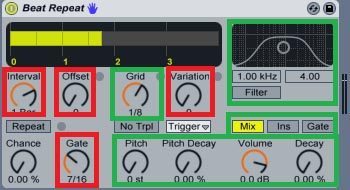
By turning the chance to 0.00%, the controls outlined in red no longer function. You can use the controls outlined in green to change what and how often the effect repeats.

Try using the Ins (Insert) setting. This will cause the repeated sound to completely replace the original sound. This setting is a lot harsher and produces more drastic effects. I would recommend using it on only one beat repeat at a time to keep from destroying the mix too much.
Sometimes the repeats will drown out a track, especially is you are using this technique on instrumental tracks but the filter will solve this problem. I like to set the filter based on the grid size of the repeats. You can also use this to add variety to drum tracks. Try the settings below and then experiment to find the perfect sound for you.

Experiment with the other controls by assigning them to a midi controller. For example, I have a control set up to raise the Decay of all three Beat Repeats to 15% and another to switch all three Filters on and off. Other than that, it is probably better to use as few controls as possible. A simpler control scheme usually results in a more powerful effect.

TRY IT OUT!

You can use as many Beat Repeats as you want. Depending on the grid sizes, pitch, decay, and other settings can either provide subtle or extreme effects for all types of music. One great option is to use only one Beat Repeat with a favorite grid size (my favorite is 1/6) so you can add some extra flair to a rhythm at the touch of a button. This effect is great because it gives you tactile control over any clip you are playing in Live. Try it out and see what you come up with.


Monday, December 13, 2010

Home Recording 101: Breaking Down Basics, Synths, Software and Gear


Home Recording
Once upon a time, electronic music was generally the realm of those with access to thousands of dollars of musical equipment, or bedroom producers working in niche and largely unrecognized genres. But over the years, the advent of home computing has brought these worlds together, with the ability to easily emulate a studio's worth of equipment on a laptop or PC. Furthermore, electronic music has become firmly accepted by modern listeners. (In fact, we'd argue that it has become redundant to even designate music as "electronic" at this point, but that's for another discussion altogether.) We've got decades worth of rock bands (from New Order to Radiohead) and hip-hop acts to prove that computers and music are now entwined, and that their relationship will continually deepen throughout time. For anyone who is curious about making music electronically, the barriers to entry have never been so few, nor have the tools been so easily accessible. Diving into the world of electronic-music production can seem overwhelming -- finding the right software and hardware for your needs, let alone using it, can be a baffling process. We're here to lend a helping hand with our guide to home recording, but it's up to you to become the next Kanye or Kraftwerk.

Our guide is aimed at those who want to make music out of their home, so the first priority is finding a comfortable workspace. A desk large enough to fit a computer monitor or laptop is essential, as is a comfortable chair -- writing music on a computer involves a lot of sitting. The software we've showcased should run on any computer built in the last couple years, but we'll let you know if anything requires extra processing power. One important piece of equipment we've left out of this guide is a monitor or studio-grade speaker set. Considering how expensive these are, we recommend starting out with a nice pair of headphones instead, such as the Sony MDR-V600s, or Shure SRH440s. These are mid-range, quality headphones and they won't end up waking the neighbors.

Let's also outline some terms we'll be using, as knowing the language of music production is just as helpful as knowing the gear itself. MIDI (Musical Instrument Digital Interface) is the protocol that allows synchronization between all manners of equipment, such as synthesizers, sampling machines, and even your computer. This is what allows your computer to instruct instruments (both real and virtual) what to play, and vice versa. Speaking of instruments, let's break down the common types. Synthesizers create artificial approximations of sound, the kind you'd hear in any Kraftwerk song, that aren't necessarily aiming for authenticity. A drum machine is an instrument that can be played and recorded in real time, set to emulate -- you guessed it -- the sound of drums. Each tone is made through either pre-recorded samples or through synthesis (making your own unique sound). Finally samplers will allow the recording and playback of sound, which can range anywhere between a snare drum to a guitar solo. We'll be the first to admit: nothing will ever satisfactorily replace the thrill of banging on a real instrument. But for many musical genres (including almost every permutation of dance music), the only keys you'll need to touch are of the QWERTY variety.

Software:

On a basic level, a software sequencer is all that a budding musician really needs to get started. These programs are, in essence, virtual music studios that exist on your computer. They allow you to write music using built-in virtual instruments as well as real ones. Additionally, most such programs provide the ability to record live instrumentation and vocals, and use tools such as effects, EQs and compressors to help craft your sound; which are assets that were once only found behind the mixing desk in any professional studio. While a software sequencer is an inestimable musical tool, different programs are better suited to different musical needs. Whether you're interested in making Brian Eno-esque soundscapes or Cut Copy-style dance music, we'll help break down how each one excels. If you get lost, just refer to our handy reference key. It'll let you know which programs are best used for recording or editing audio, sequencing and programming virtual synthesizers, how much you should spend and how tricky each is to master.

Icon Guide

Multi-Platform:

Ableton Live

Ableton Live
Ableton Live is a great choice for musicians who are new to software sequencers and want to get started making music quickly. It's also used by musicians of all talent levels and across a wide variety of genres, due to it's intuitiveness and ease of use. The program's streamlined interface contains clearly marked buttons that allow for quick recording and playback, as well as the ability to drag and drop audio files directly into its editing window. MIDI synchronization is a breeze, which is a godsend for the less technically inclined who want to plug in a keyboard. Not only that, but it's built to function as a live performance tool, allowing for on-the-fly sound manipulation and synthesis control. Don't forget that Ableton is multi-platform and widely used, so you're likely to find others who are comfortable working in its environs if you get the urge to collaborate.
Audio RecordingRecordingLive RecordingEasyDemo

Pro Tools

Pro ToolsPro Tools excels at recording live instrumentation. For those who want to keep their guitar handy but crave a quality workspace in which to edit, sequence and work production magic, Pro Tools is unparalleled and an industry standard. However, it's not an ideal choice for those who want to sequence out every note by hand (er... mouse) or synthesize artificial sounds, so unless you are recording instruments or polishing up work done in another software sequencer, head elsewhere. Accomplished musicians may love its professional-grade quality (and not mind its hefty price tag), but bedroom artists looking to make chill beats might not find it the best fit.
Expensive Audio Recording Recording

Reason

ReasonThe closest you can get to the thrill of racks of real synthesizers, samplers and drum machines, Reason is ideal for synth-heads who don't want to drop major bucks. Set up as a series of virtual instruments (complete with modeled rear panels, cables and all), Reason functions very much like a virtual representation of its physical counterparts. While true to life, this can be a drawback when the sequencer emulates the archaic hardware of yore, lacking much of the versatility of modern programs. Reason can serve as a good educational tool for those thinking about eventually using real instruments and hardware. As a synthesis-oriented program, those who want to create more organic-sounding, non-techy work should look elsewhere.
Synthesis Demo

Mac:

Logic

LogicLogic is an exceptionally deep program with an incredible ability to write, edit and polish any piece of music, and it takes years to truly master. The program also comes with one of the best suites of proprietary synthesizers we've seen, which makes it really excellent at synthesizing organic sounds and instruments. The MIDI functionality allows it to sync with a variety of musical hardware, from synthesizers to drum machines, and it's made leaps in its audio-editing abilities, bringing it closer to the industry standard of Pro Tools. Though not as intuitive as Ableton (although it has made strides to be as user-friendly as possible), it's steeper learning curve is offset with flexibility -- and one of the most impressive tool sets of any software sequencer available today.
Audio Recording Synthesis

GarageBand

Garage BandGarageBand is basically a simplified, free version of Logic, which makes sense considering it was masterminded by Logic creator Gerhard Lengeling. Some might scoff at its straightforwardness -- or that it comes standard on new Macs – but we think that it's an excellent starting point for any budding musician needing a fast fix now or hoping to graduate to Logic later. Often, tricky plug-ins or weird controls can stifle creativity, but GarageBand's simple, cut-and-dry layout lets songsters get right to it. The program comes with a variety of sampled instruments and synthesizers, as well as support for third-party software (though the program's limited MIDI capability makes it a poor tool for controlling hardware). We like to think of GarageBand as the perfect solution for quick and dirty instrumentation and vocal recording, or a cheap four-track of software sequencers... and that may be all you need.
Inexpensive Easy

FL Studio

Fruity LoopFL Studio (formerly Fruity Loops) has traditionally been used as a learning tool by those just getting into making music on their computer. Nevertheless, it's a viable option for those interested in its unique collection of sequencing methods. FL Studio combines the regimented sequencing of old analog gear with a versatile "piano roll," a visual sequencing method that allows one to non-linearly alter the pitch, time and sequence of notes. FL Studio is great for those who want to make dance music or synth-heavy hip-hop beats; and while its proprietary software and built-in sounds aren't as versatile as say, Logic's, it's a fantastic tool for learning the ropes of software sequencing.
Inexpensive Demo


Hardware:

It's always nice to have a few bits of gear to use in conjunction with a computer. We like to have at least one piece of physical equipment to mess around on, and it can help shake up the creative process to step away from the computer and twiddle some knobs. While we can't detail every bit of gear worth looking in to, here are a few suggestions to consider.

microKORG

Micro Korg
Our go-to synthesizer is the microKORG. Not only is it affordable, but it's also extremely portable, making it perfect for your grand debut at your cousin's Bar Mitzvah. It features full MIDI capability, which means it will function as a controller keyboard, allowing keys played in real life to be altered digitally. Playing your computer's software synthesizers with the Korg is far more intuitive than sequencing melodies visually, especially if you already know how to tickle some ivories. To top it off, it's also got vocoder functionality, for your crucial Daft Punk impersonations.
SynthesisLive Recording

MPD18 USB MIDI Pad Controller

MPDD18
Based on Akai's MPC line of drum machines, the MPD32 is an excellent MIDI controller for those who want to pound out their music creation. Large, comfortable pads can be used to trigger anything you want, from sampled sounds to keyboard notes, helping the player tap out sounds in real time. The MPD32 has both MIDI and plug-and-play USB functionality, meaning you'll be banging out sound in no time.
InexpensiveEasyLive Recording

M-Audio Oxygen 25 USB MIDI Controller

Oxygen 25
If the microKORG is too rich for your blood, then the Oxygen 25 Midi controller is a logical next step. It can't produce any sounds on its own, but will plug into your computer to naturally play and record software synthesizers, rather than having to sequence everything by hand (or mouse). Both it and the MPD32 function well with Ableton Live, which can assign notes and noises to each machine, for a dynamic live performance.
EasyLive Recording


M-Audio Fast Track Pro

Fast Track Pro
Let's face it, your computer's built-in sound just isn't going to cut it. If you want to record or use MIDI, a new sound card is vital, providing extra control and another hub for your newly acquired gear. We like the M-Audio Fast Track Ultra for its ease of use and multiple inputs. It can record vocals and instruments, and also has MIDI In/Out ports for communicating between software and hardware. With a simple USB input, the M-Audio is so simple to use, it's hard to believe that the sound card is such an essential piece of hardware.
Recording


Shure SM57/58

SM57 and SM58
Lastly, budding bedroom producers may want to try their hands at playing an instrument or singing. For beginners who want to record their ax or belt out some vox, we've picked the Shure SM57 and SM58, the two classic workhorse microphones. The 57 is ideal for instrumentation and the 58 for vocals, and each should suit any bedroom producer's needs well.
Recording