Showing posts with label Serato. Show all posts

Wednesday, September 4, 2013

Expect A New An Improved Scratch Live by 2015. The Official Word From Serato’s CEO


The news today of Serato DJ having DVS finally integrated into it has big repercussions for users of the company’s software, most of all of course for Serato Scratch Live users, who will obviously now be wanting to know where this shift of emphasis leaves them.
No doubt pre-guessing the number of concerned existing Serato Scratch Live users who are going to want quick answers, Serato’s CEO Sam Gribben has recorded a video message explaining today’s news, which you can see here.


The bottom line is that no users will be left in the cold, nearly all hardware will still be supported, and the public beta will iron out any issues as the company migrates everyone across – but of course, you’ll still be best advised to get used to the new platform eventually, as from 2015 onwards it’ll be receiving reduced support and no upgrades.


Credit : Dj Digital Tips

Thursday, July 25, 2013

DJ Tech : Serato Introduces “Serato Remote,” Their First iPad App


For DJs living in Serato land, we imagine you’ve recently updated your software, but if you own an iPad, you’ll need to fork over $20 for Serato Remote, Serato’s first iPad app. Don’t ditch your laptops yet, though; this works in conjunction with your Serato-loaded (and digital file-holding) laptop, acting more as a controller. You’re able to trigger effects, cue points, loops, and samples, as well as being able to load tracks and make doubles during your mix. It might make it easier for DJs who want to manipulate their sounds without having to hit the Serato Face on their laptops, but we have a feeling this could end up just being “another thing” that DJs have to keep control of. To be fair, it also mimics a lot of what we’ve seen the Traktor setups do, although the interface on this one looks like a lot of fun to play. Check out the demo video up above, and find out more about Serato Remote.


Monday, February 4, 2013

DJ Tech : How To Avoid Serato Face: Solving DJ Screen-Gazing


serato-face-header
As laptops grew to be commonplace in the DJ booth over the last decade, many DJs have become screen-locked throughout their performance. As a famous Tumblr blog has chronicled, staring at a computer screen often creates a disconnect between performer and audience, making phrases like ”Is the DJ checking their email right now?” commonplace on the dance floor. In today’s article, read our techniques to avoid Serato Face and improve your performance.

SERATO FACE?

Serato Face noun a blank or inappropriate facial expression worn while staring at a screen at a dance party or social club.

It might be about the music, but with the rise of electronic dance music and DJs as headlining acts, audiences (American crowds especially) are often watching the person behind the decks just as much as they’re listening to the playing track.
But Serato Face isn’t just about what a DJ looks like they’re doing from an audience perspective. If you’re behind the decks and you’re spending more time staring down a computer screen or a CDJ’s LCD panel, you could be missing out. Your screen might be giving invaluable information about the track that’s playing and mixing the next track in, but only looking out at the room and the crowd will help tell you how well you’re doing and the next direction to take your set.

TECHNIQUES FOR DJING WITHOUT THE SCREEN

In the last few years we’ve seen more new DJs than ever before. One of the primary reasons has been a significantly lowered cost associated with purchasing starting equipment. Most “modern” learning DJs are already computer-focused because the screen familiar territory – perhaps significantly more so than being a performer at the center of attention.
Like in the tweet above, some older DJs and vinyl purists will argue that cutting out the computer entirely is the best solution – but for many DJs the computer is fundamental to their entire workflow.

#1: MOVE YOUR LAPTOP


The most common suggestion from our followers on Twitter when we asked for their best advice to avoid Serato Face was simple: move the laptop out from the center of your setup. In doing so, you can emulate the behavior of more traditional DJing – turning away form the decks and the crowd only to select a record or CD. Keeping your laptop located front and center means that you’ll default to looking at it, like in the photo at right!
We like this idea a lot – and it also means that as a DJ you’re less likely to use your computer for waveriding (see below) if the waveforms of your tracks aren’t right in front of you. It’s worth noting that putting your laptop on the floor or below the booth level could be dangerous –

#2: USE YOUR GEAR INSTEAD

Great news, there’s a useful reason for gear lust besides just getting the shiniest gear! A well-constructed personal DJ rig should have all of the digital controls that you use in regular performance mapped out on a piece of controller hardware.
Sometimes you just need more buttons.
Sometimes it’s difficult to make an assessment as to how well your controller and other hardware are fulfilling your DJing needs. Here’s a great exercise to help plan your next gear purchase or clever new MIDI mapping for your controllers:
  1. Put a sticky note next to your computer
  2. Have a 20-30 minute practice session on your setup
  3. When you have to touch the keyboard/mouse, mark down what actions you’re triggering
  4. Assess your list and re-map or pursue new gear based on the most common noted.
 
For those of you into getting especially performative with your DJ gear, it’s worth considering controllers and effects that really allow the audience to experience what you’re doing live. The RMX-1000, Korg’s Kaosspad units, Maschine, and the Midi Fighter 3D are some of the most recommended gear that work in this capacity – just be sure that your audience can see what’s going on. Consider holding up your gear for everyone to see, like Bass Kleph does (at right).
Bonus Gear Tip: try to find DJ equipment that you don’t need your eyes for. You should be able to do it by feel – allowing you to look up and make eye contract with your audience while you’re rocking the house.

#3: USE YOUR EARS INSTEAD

One of the best parts about DJing on a computer is that you get to see computer generated waveforms of the tracks that you’re mixing in, allowing you to watch for changes in the tracks and making beatmatching and phase syncing easier for many learning DJs. Even experienced DJs get stuck on their waveforms as a simple crutch – with some DJs mixing without headphones and just matching waveforms (waveriding). As helpful as this heads up display might be it’s time to actively practice not doing it.
The main path to breaking the umbilical cord to waveforms is to learn your music. If you’re well-acquainted with the tracks that you’re likely to mix into a set, you’ll be familiar enough with each song’s structure and evolution to not need to reference the screen to see what will happen in the next part of the track.

#4: MAKE GREAT PLAYLISTS

This is the natural follow-up step to learning your music: building playlists and sets that you’ve carefully crafted. This helps keep the amount of time you spend in front of the screen trying to figure out what to mix in next to a minimum. We’ve had a number of articles on DJTT that focus around the art of building efficient playlists and DJ libraries.
In a similar vein, if you’re building a playlist for a more fast-paced routine, you’ll be able to quickly dial down to the next track and load it in with just a quick glance to your computer screen. In Traktor, you can even set the preferences to automatically load the next track from a playlist when one finishes (see below).

#5: HIDE / ACCEPT YOUR SERATO FACE 

There’s no doubt that staring down the screen works well for many DJs, but it’s really up to you to determine if you’re doing it to excess. Some DJs (like Ryan) feel that laptop gazing shows that you’re working hard. This holds some truth with some larger DJs as well, where instead of trying to modify their behavior, they incorporate visual elements into their show that gives the audience something else entirely.
Case in point, Amon Tobin (pictured below) likely does a lot of staring into his computer screen in the booth during his wild ISAM tour, but he stays hidden for almost the entire show, instead relying on the impeccable visuals to speak as his outward face.

Credit : DJ TechTools

Friday, October 5, 2012

DJ Tech : Check Out The All New Serato DJ

serato-dj-header Serato’s rolling out a brand new piece of DJ software today – Serato DJ. Fresh on the heels of updates to ITCH and SSL last week, the introduction of Serato DJ is designed to fill a professional controllerist DJ gap in the Serato software lineup. With a feature set that includes real MIDI mapping utilities, iZotope-developed effects, additional cue points, and a brand new Pioneer DDJ-SX controller for the software, is Serato DJ ready to win the hearts of digital DJs?

SERATO DJ FEATURES

The new software is built on top of a familiar set of features that users have experienced in ITCH and to a lesser extent in DJ Intro – including recording, syncing, SP-6 sampler, colored waveforms, but Serato is wrapping in a number of new features to Serato DJ that might make it a better fit for a professional controllerist. Many of the below features have been requested by Serato users for quite some time, but it will be great to finally see them in DJ:
  • Great New FX Powered by iZotope: Load your choice of high quality FX including: Delay, Echo, Ping Pong Delay, Reverb, Phaser, Flanger, Distortion, High Pass Filter (HPF), Low Pass Filter (LPF), Combo HP/LP Filter.
  • MIDI Mapping: Take full advantage of Serato DJ’s features. MIDI mapping opens up the software to be mapped with a secondary MIDI controller.
  • More Cue Points: Set and trigger up to 8 cue points in Serato DJ to quickly jump to different sections in your track.
  • Brand New User Interface: A greatly improved software layout that looks amazing and is simple to use. The new interface also offers two and four deck view modes for four deck controllers.
  • Four Deck Mixing: Mix with four decks on supported four deck controllers.
The press release from Serato also notes that there will be additional features released “throughout the winter”. So far, there are no videos or screenshots of the software in use – but keep your eyes peeled as we’re entering BPM week!

PIONEER DDJ-SX


The DDJ-SX is yet another Pioneer/Serato collaboration – a four deck controller designed to be the ultimate controller for Serato’s new software. The major features of the SX include a completely standalone hardware mixer, slip mode, velocity-sensitive performance pads for samples, channel fader starts, dedicated filters, and touch platters that can be switched into a dual deck mode that allows for control of two decks concurrently.

No word yet on cost – but the unit is set to launch November 1st concurrent with the initial launch of Serato DJ.

HARDWARE COMPATIBILITY AND COST


Continuing Serato’s well-known hardware-paired business model, the new software will roll out in stages for specific controllers:
Serato DJ can be downloaded directly from serato.com and will be available in a series of release dates specific to individual controllers this coming winter.
Serato DJ is a free upgrade for current ITCH customers and is fully compatible with their supported existing controller (Numark NS6, Numark NS7, Numark V7, Vestax VCI-300, Vestax VCI-380, Novation Twitch & Pioneer DDJ-S1). Upgrades for ITCH controllers will rollout gradually this coming winter.
Serato DJ Intro users can upgrade to Serato DJ for a one-off cost of $199USD – and for a limited time this includes a license for the powerful Serato Video plug-in. The software is fully compatible with their existing controller. Customers with a Numark Mix Track Pro controller will be the first to upgrade, followed by others such as: Numark N4, Numark MixDeck Numark MixDeck Express, Numark MixDeck Quad, Vestax VCI-400, Vestax Typhoon, Vestax VCI-100 Mk2, Pioneer DDJ-ERGO, Reloop TM4, Reloop TM 2 and Denon MC2000 in a gradual rollout.
NB: Customers with discontinued hardware will be unable to upgrade to Serato DJ, however these controllers will continue to be supported by ITCH 2.2.2.
There’s something a bit odd about this entire release process – if you’ve been following closely, you’ll notice that the entire feature set of ITCH is wrapped in Serato DJ, it will be a free upgrade for ITCH users, and all ITCH controllers will be supported. It seems like ITCH could very much be undergoing a rebranding process to be taken more seriously – especially if the feature set delivers. Perhaps this is really a completely new version of ITCH with a name change (although a bit less ambiguous of a name would have been nice)? (Editor’s note: We asked Serato and they confirmed that last week’s 2.2.2 will be the last release of ITCH) 
The software will continue to be locked down to just Serato DJ certified controllers, just as Scratch Live is. While you can use MIDI mapping to get functionality on secondary controllers, you’ll have to have a primary one plugged in to get the software behaving properly.

Credit : DJ Tech Tools

Monday, April 23, 2012

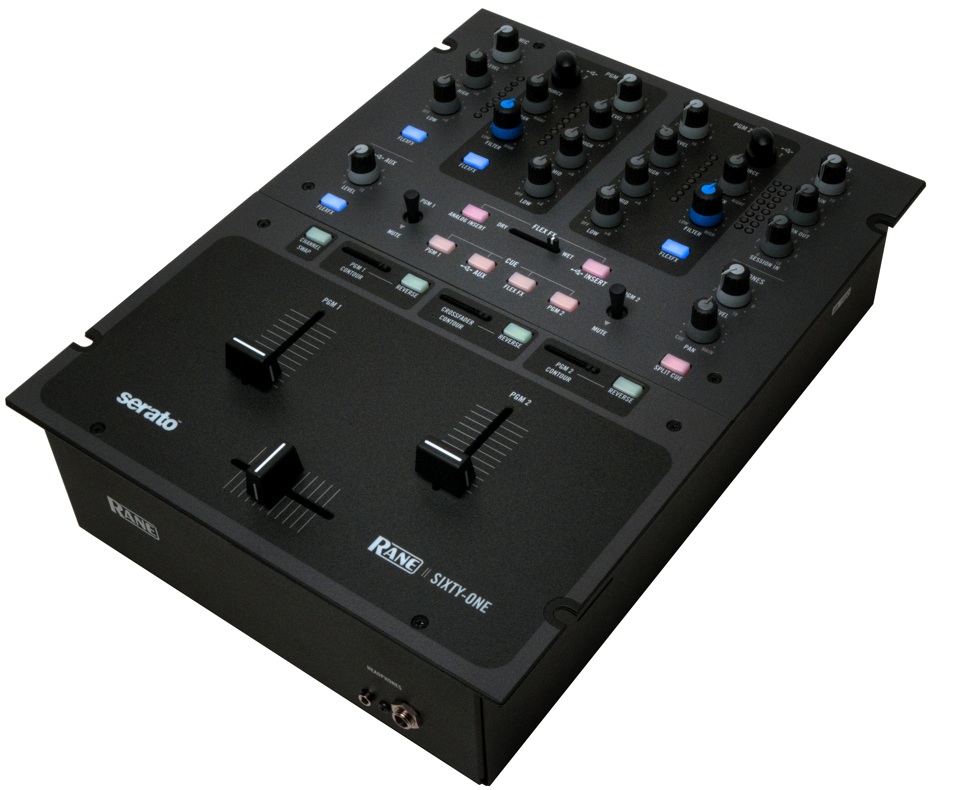
DJ Tech : Check out the Rane Sixty-One Digital Mixer for Serato Scratch Live

Rane Sixty-One Review

Serato Scratch Live (“SSL”) software has immense influence in the digital vinyl (or “DVS”) world. Digital vinyl systems use traditional DJ gear (record decks/CDJs and mixers) to control laptop software and thus digital music files. While nowadays SSL has a strong competitor in Traktor Scratch, it continues to wield a lot of power and respect – and by extension, so does Rane, Serato’s official hardware partner.
As well as producing audio interfaces that allow you to use your traditional DJ mixer with Serato Scratch Live, Rane also produces digital DJ mixers that do away for the need for an audio interface. Plug two turntables into a Serato Scratch Live-enabled DJ mixer, such as the Rane Sixty-One reviewed here today, and you need no extra hardware apart from your laptop to be able to DJ using software and digital music files. Let’s take a closer look…


First impressions and setting up

Rane doesn’t produce shoddy gear, and it doesn’t produce cheap gear, either; on unboxing (and checking the price – a cool US$1,400) it is clear that the Rane Sixty-One continues the tradition. It’s an understated mixer, appearing at very first glance like any full-sized two-channel DJ mixer. It is metal, but not over-heavy, and painted in a sober grey and black colour scheme. The only flash of colour is added by the two royal blue and black filter controls.
Rane doesn’t produce shoddy gear, and it doesn’t produce cheap gear, either…
As well as the mixer, the box contains two control records, two control CDs, a USB cable, an IEC C5 line power cord (or kettle lead, to us heathens), a quickstart guide, the full printed guide, and a software CD.
Back to the mixer itself. The front panel contains just the headphones sockets (1/4″ and 1/8″), and the whole unit sits on four screwed-in rubber feet.
Round the back there are a big, chunky on/off switch and power socket, the USB for your laptop, TRS 1/4″ balanced outs (no XLRs), “session” ins and outs (more on these later), the effects loop ins/outs (again, paired TRS, this time unbalanced). four RCA inputs (switchable from phono to CD), a mic input (again, switchable mic/line) and a pair of earthing poles with oversized screw-downs for the deck grounding.
Rnae Sixty One Top

To the top of the mixer. There is a lip around the top edge, and four bolt holes to allow the unit to be fitted into a permanent DJ set-up, flush with the surface.
The top plate is in two halves, the bottom half covering the faders, the top half all the other controls.
The faders are magnetic and nicely loose in feel; the magnetic design means that even if they get dirty and feel a bit dodgy (stuff does get spilled on mixers, after all), they’ll be more likely to continue to perform well.
The three controls above the two line faders give away the scratch DJ pedigree of this mixer; all are squarely aimed at turntablists. Thus you get a channel swap button, plus fader contour and reverse buttons for all three faders.
The faders hit full reach before they contact the top plate, stopping with a pleasing, slightly damped feel that means I doubt anyone is going to use this mixer carefully keeping the lines at 2/3rds; it screams to have fine tuning done at the trims and have the lines used throughout their reach. That’s how I fell into using it, anyway.
The upper half of the top panel contains all the other controls. The mixer’s two channels (each of which has gain and three-band EQ) have input selectors for the analogue and digital inputs (more later), including the requisite thru/USB settings. There are FX send buttons for both of these main channels, as well as for the microphone channel (two EQs and a gain) and the AUX (which is a digital AUX designed primarily to carry the signal from the sample decks).
These are the modern-day equivalent of the sprung toggles we used to use back in the day as cut switches…
True analogue “aux” thru is provided by the session input, which has a volume in (but no other controls on the input) and a “session out” level. Rane says this is typically used for hooking multiple mixers together, but I can see it used more as a true “emergency thru” (session in) and as a booth monitor (session out), as the output is effectively a second master out, with its own volume control.
Finally, there are the cue buttons (including an FX cue), the dry/wet mini-fader for the FX send, and two insert buttons for the effects (more later on this). Oh, and two small “mute” joysticks: These are the modern-day equivalent of the sprung toggles we used to use back in the day as cut switches; move these in any direction from central and they have the same effect, killing the channel until released, upon which they spring back to central and the channel’s throughput is restored.

In use

Rane and Serato’s system is like the Apple of the DVS world; it’s meant to just work, and by and large it does. You install Serato Scratch Live (it’ll automatically install the correct drivers, Core Audio or ASIO depending upon whether you’re on Mac or PC, as long as you follow the instructions and have the hardware plugged in as you run the installers); calibrate your decks (it’s simple – one-button, basically); and plug everything in as they say. Then, it all just works. Took me all of 10 minutes.
Rane Sixty-One Set-up

The mixer is described by Rane as “dual personality”, and that fits well, as it is equally at home with analogue and digital sources, switching seamlessly between the two. That means you can use it in situations where you have vinyl/CD and digital vinyl DJs playing, or indeed where you want to mix and match within the same set.
The unit screams usability: the aforementioned smooth faders; hard, backlit, minimal-movement pushbuttons; and low-resistance panel-bolted pots all meaning it inspires supreme confidence in use.
The filters are actually hardware effects, and sound customarily excellent; one curiosity is that you can adjust their resonance, but only through the SSL software.
The “Flex FX” are also a hardware/software hybrid; you can use the analogue insert button to send any source that has the “Flex FX” button pressed (including multiple sources) to the FX bus, so you can add external hardware effects (such as Pioneer’s new RMX-1000, for instance), but also you can send your chosen sources (and that includes analogue sources) through Serato Scratch Live’s DJ FX by pressing the USB insert button. Interestingly, you can also do both, and a schematic in the manual shows you how this all fits together.
Serato Scratch Live’s effects can themselves be daisy-chained into two sets of three, so overall you have quite some flexibility available here. However, the eagle-eyed among you will have spotted that there are no controls at all on the mixer for effects other than the on/off and wet/dry controls, and the hardware filters. We’ll mull over this omission in the conclusion.
It sounded truly excellent:smooth, with clarity, warmth, punchy bass and crisp, pleasing highs.
Rane make much of the audio interface spec in this unit (32-bit floating point, 48kHz), and on test through half-decent studio monitors it sounded truly excellent: smooth, with clarity, warmth, punchy bass and crisp, pleasing highs. I wired up an iPhone (via its headphones socket) through the Session In channel on the Rane to test the emergency thru capability of the unit, and the iPhone sounded shockingly bad against the lovely digital audio from the built-in interface on the Rane.
It’s also worth noting here that the interface can (unlike the mixer’s SSL predecessor, the TTM-57SL) be used as a six-stereo-record, four-stereo-playback audio interface for any software when Serato Scratch Live isn’t running, thanks to a supplied control panel app.
Regarding the interfacing with Serato Scratch Live software, I felt instantly at home mixing “vinyl” on it, and as a DJ who played on vinyl for 15 years before “going digital” (and by “going digital” I mean all-out, switching to controllers, not DVS), it felt completely authentic. As I alluded to at the start of this section overall it “just worked” – exactly as expected, with no real surprises.

Conclusion

Very quickly you start to mull over what Serato intends this mixer to be used for. You see, the TTM-57SL, as Serato’s previous only two-line Serato Scratch Live mixer, was trying to be everything to everyone, with effects, loops and so on onboard. This mixer has none of that. Conversely, the Sixty-Two – released at the same time – is all bells and whistles. It’s like the company is trying to replace the ’57 with not one, but two mixers.
Rane Sixty-One Rear
.
Here’s what I thing their reasoning is. The Sixty-One, for me, is designed for hardcore vinyl enthusiasts, who want to incorporate digital vinyl into their DJing. When Serato Scratch Live is in “absolute” mode, it is designed to really, truly, emulate real vinyl. The start of the control record is the start of the MP3; the end of the record, the end of the MP3. Jog the turntable, the MP3 “jogs”.
Necessarily, therefore, there will be no looping, cue points and so on DJing like this – because it’s not present on vinyl. For Djing in this manner, the Sixty-One has exactly what you need – and nothing more.
The Rane Sixty-One provides a simple, elegant, pristine quality “in” into turntablism, and is particularly suited to the technology-agnostic DJ
The filter is a nod to the present, granted, and of course you can switch into relative mode and start introducing some of the bells and whistles of digital DJing, but don’t expect the Sixty-One to come along for the ride: You’ll be using your laptop to control the effects, loops and cues, (or alternatively, you’ll go for an external Midi controller). The Rane Sixty-One could in this light be seen as a TTM-56S, but with Serato Scratch Live capability.
The Sixty-Two, however, has built-in effects, cues, loop controls and so on – it’s more like the ’57, but with the advances that both of these mixers share over that mixer (better audio interface with the ability to use it with other applications, USB 2.0, plus easy switching between analogue and digital, or indeed two laptops in the case of the Sixty-Two), Between the two models, I believe Serato wants to cover two distinct customer types, and I wouldn’t be surprised therefore to see the ’57 phased out.
Which only leaves us with the price, and here’s where things start to look less rosy. The Sixty-One is priced pretty much the same as the ’57, and features-wise, you’re getting less. Higher spec maybe, but less overall. You’re frankly paying a hefty premium. (If you were comparing the ’57 to the Sixty-Two, in many ways its more natural replacement out of the two, well, the difference is a cool US$600.) You definitely need to consider whether it is worth the extra over the ’57 for you.
To conclude. The Rane Sixty-One provides a simple, elegant, pristine quality “in” into turntablism, and is particularly suited to the technology-agnostic DJ (probably turntablist) who simply wants hardcore vinyl emulation without any complications. It’s Apple-like in its implementation of digital vinyl; Rane and Serato have made switching between real vinyl and control vinyl use a cinch, and have set a new benchmark for usability here.
It sounds amazing, and the flexibility afforded by its sound interface makes all kinds of hardware/software permutations possible and indeed straightforward. But if you want the bells and whistles you may be expecting from a new Rane mixer having got used to the spec of the ’57, you need to look to the Sixty-Two – and swallow a significant price jump to boot.


Thursday, March 8, 2012

DJ Tech : DJing With A Computer Keyboard

abletonkeyboardcover
Digital DJing and controllerism has come a long way from simply “laptop DJing” (say it with contempt for full effect), but for most digital DJs the laptop remains the central part of their setup. While there’s usually a better workflow than hunching over your keyboard, there are instances where using your computer’s keyboard gets the job done better than anything else. In this article we explore the best uses and mapping considerations for the buttons that you always have with you on your laptop!

THE FULL SETUP

In an ideal world, you’ll be set up with a powerful controller or two. But there are plenty of DJs getting started, still searching or saving for the perfect controller. If you’ve already got that perfect controller, what happens if it gives up the ghost in the middle of a gig? The computer keyboard might not be the most stylish or the most gratifying way to manipulate your DJ software, but it’s often faster and more effective than your trackpad or mouse.
Different software deals with keyboard mapping in different ways. Of the ‘big three’ – Ableton Live, Traktor, and Scratch Live – Traktor’s is probably the most powerful, but in exactly the same way as its MIDI mapping system, it’s the most fiddly.
Ableton Live’s key mapping system works in exactly the same way as its MIDI mapping; learning is quick and easy – but it’s actually a little more flexible as shift, alt, and shift+alt can be used as modifiers.
Despite sensible layout (including logical modifier layers) Scratch Live provides no way to modify Serato’s default key mapping, so it’s the clear nag in this particular race.
Ableton’s key mapping approach is surprisingly flexible, combining its click-to-learn approach with four states per key with simple modifier commands. The modifiers keys include alt/option, command, control, and shift. The only thing that isn’t ideal is its inability to recognise held keys, meaning toggles are the only option and momentary switches are out.
Traktor comes with a pretty decent default map for a two deck setup, but it’s not the best thing for every situation. Take a look at this mapping from Eric Zone (courtesy of TraktorBible), which approaches things a little differently to the default mapping. There’s less in the way of features, but a concise workflow that allows for effects, quick access to loops, and mixer functions.

Thinking Ahead

Our number one tip for making your  own keyboard mappings: plan ahead! A little thought into a map that will work best for you – either to enhance your setup or act as a emergency backup controller – will go a long way. Consider your most often used functions!
Ableton Live’s a blank canvas, and in the same way that you need to set your DJ set up from scratch in Live, you’ll have to set your key map up. Traktor’s controller editor is notoriously labourious to use, and despite Live’s surprise strength when it comes to key mapping you’d be surprised how quickly you can become key-blind staring at a list of commands in the mapping editor, so I whipped up this keyboard template image for your brainstorming sessions. Click here to download at 300dpi!

AN EXTRA CONTROLLER

Some DJs aren’t put off by the idea of using a keyboard in the booth at all – in fact if you have a nice keyboard you might actually prefer the feel of the buttons over those found on some MIDI controllers. A computer keyboard can actually do some cool stuff; I’ve cooked up a little FX bank for Traktor as inspiration and to show how a bunch of buttons can go a long way.
Check out my basic Traktor Pro 2 keyboard based FX layout here(Warning: this .tsi contains keyboard mappings and effects settings, so be sure to have anything you choose to import backup up safely if you want to keep existing settings!)
Ergonomic Considerations
  • Your keyboard has a whole lot of keys that each do a single thing: get pressed and register a command. Fans of Midi Fighters, Monomes, and the like will already be in ‘binary mode’ when thinking about mappings, but if you’re a little more used to thinking in terms of knobs and sliders then smart use of buttons is sometimes a foreign concept.
  • Because keyboards have no knobs and sliders, think about how you actually use effects and what you need in order to get as close as possible to your normal operation with just buttons. For example, you can’t smoothly adjust EQ, but you can hit a full kill in one movement. You can’t ride the pitch fader, but you can use pitch bend buttons to nudge you back in phase.
  • If your play style revolves around juggling cues, something to experiment with is assigning two adjacent buttons to the same action to allow you to ‘twiddle’ the two buttons and at the same time reduce the risk of accidentally hitting the wrong button in the heat of the moment.
  • Be careful when putting buttons close to each other! This is a pretty universal concept whether you’re on a keyboard or a controller, but if your load track or stop button is right next to your ‘instant cool FX’ button, you’re playing with fire. The mapping above from Eric Zone almost certainly has ‘lock playing deck’ switched on when it’s being used, because of the proximity of the load button to all the rest of the controls.

LIBRARY MANAGEMENT

There’s another very valid use for your computer’s keyboard, and that’s helping out with the often gruelling task of managing your track library. Things like adding tempos, cues and beat grids can be a hassle in Traktor, but with a mapping on standby that you can switch to during downtime you can mitigate the frustration of using the mouse – or worse still, the trackpad – to get these important tasks done. Rainier over at Traktor Bible has a pretty sleek mapping designed just for this purpose over here. TraktorBible’s Beatgridding with Keypad map.

REMEMBER THE CONTROLS!


So you have a setup you like. It’s just that remembering that ‘F’ is hotcue 2 isn’t the easiest thing in the world to do. If only there was some way to customize your keyboard to make things easier to remember!
You have a few options when it comes to improving the memorability of your keyboard maps, from off-the-shelf rubberized overlays designed to fit a variety of keyboards and work with the out of the box mappings (the DJTT webstore stocks the KBcovers pictured above for both Serato and Traktor) to customizable blank keys that can either be printed to or written on (like these over at Amazon for less than $2), to stationary stop gaps like small colored dot marker stickers.

Saturday, February 25, 2012

Projection Mapping Onto Turntables


Check out this projection mapping video using a set of technic turntables with the serato interface.
 

Thursday, January 26, 2012

DJ Tech : Check Out The Rane Sixty-One and Sixty-Two Mixers

Rane and Serato have worked tightly together for eight years pioneering practical DVS systems. The TTM57 is definitely showing its age, though, and has now received a modern update.  There are 2 models of mixers: The Rane 61 and the Rane 62 depending on what your flavor of mixer is.
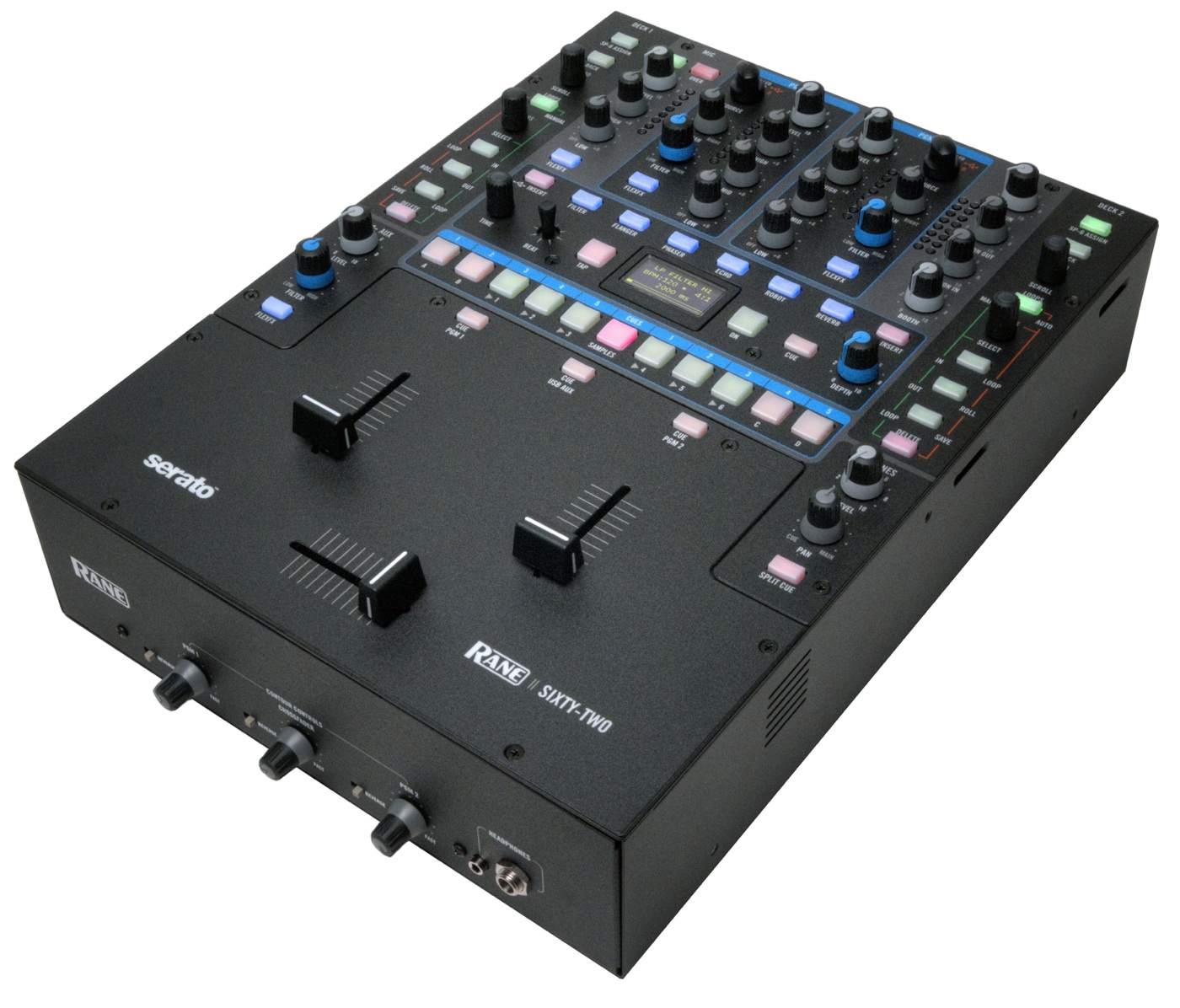
We thought actually talking to the minds behind the products would be pretty interesting – and we were right. Check out the above beautiful-looking interview shot by Zach in the most coincidentally aesthetically pleasing meeting room in the world.


Refined Design

A lot of the developments that came about through the design of the Sixty Eight have been carrried forwards in these new mixers. Perhaps two of the most exciting are 32-bit floating point audio throughout and two channels of full USB 2.0 connectivity. The faders are all Rane’s patented magnetic design, one of the many design decisions that is predicated upon the Sixty One and Sixty Two being scratch DJ orientated mixers.

The Rane Sixty-Two

The buttons on the Sixty Two are a somewhat unique design. They’re not dissimilar to the ones on the Sixty Eight, but they’re definitely different. They’re a very hard plastic, with almost no travel. Rane explained that there are two reasons for that choice: the longevity of the actual buttons is somewhere in the order of five million presses, and ergonomically there’s a strong case to be made for lining the buttons up above the channel faders in what is ostensibly a scratch mixer. For a start, leaving the fader area free is imperative to scratch DJs, and also being able to stretch fingers from the fader section up to the buttons and press them with almost no resistance is great. Of course, if you don’t like them, the Sixty One’s more spartan design may be for you.

The Rane Sixty One

Capabilities

Both mixers have a hardware filter, and feature adjustable resonance. Whilst the Sixty One more or less stops there when it comes to dazzling features, the Sixty Two has a whole host of extras. The Sixty Two’s hardware effects:
  • Filter
  • Flanger
  • Phaser
  • Echo
  • Robot
  • Reverb
One of the big developments about the effects on the Sixty Two is their simplicity. There’s a depth knob, an adjustment dial, and the ability to manually select BPM (should you not be using Scratch Live, for which the effects are all pre-synced to the internal BPM), and that’s all. Of course, the Scratch Live effects can be configured in software, and as the controls are all MIDI it’s possible to assign controls you don’t use much (perhaps mic control, for instance) to their parameters. The Scratch Live insert is available on the Sixty One too, as are external effect send/return, and they’re all stackable. All effects are totally post fader too, which is a big plus over Pioneer’s efforts; cross fader and line faders are all post.
Want to see DMC 2011 World Champion DJ Vajra tear it up on the Sixty-One? Your wish is Serato’s command.

THE BOTTOM LINE (SO FAR)

The Sixty One is the simpler of the two mixers, designed to be a less feature heavy and thus simpler version of the two; it’s more a Scratch Live enabled version of the TTM-56S than a two channel Sixty Eight. The Sixty Two on the other hand is a behemoth of potential, and if you like the design you might see yourself finding reasons to spend the extra (prices are to be confirmed, but I don’t expect either to be cheap – definitely not the Sixty Two). I’m not 100% sure where I stand between the two yet; I love the effects of the Sixty Two but at the same time I have existing tools to manipulate DJ software, so I doubt I’d use the buttons for the majority of the performance.

Z-Trip's Limited Edition Rane Sixty Two
For more information on each of the mixers, including complete tech specs, visit the extensively in-depth Rane product pages for the Sixty One or the Sixty Two. It’s also worth showing off the above version of the Sixty-Two Z-Trip’s Limited Edition Sixty-Two Z Mixer, which features:
  • Face plate design by Shepard Fairey.
  • Purple and yellow accents.
  • Includes custom purple cables


Tuesday, November 29, 2011

DJ Tech : Why Digital Is The Saviour Of DJ Culture


Two turntable and a microphone
DJing in the 1970s: Was it any less DJing because it didn't involve beatmatching? Pic: Preston Covillaud
I have nothing but respect for DJs who have mastered the art of turntablism or silky smooth mixing on vinyl: These are truly magical skills on a par with real musicianship. But there was a time not so long ago when DJing was all about the music you played rather than your mixing ability. Those times were in many ways far more creative and musically exciting than today.
I remember when acid house and Detroit techno first became popular in London and many of the funk, soul and reggae DJs said it wasn’t real music if it wasn’t made with instruments. They spoke against it as ersatz fakery and said uniform beats created on a drum machine were so easy to work with that it made a mockery out of the craft. Now some of those very same DJs love to talk about how they were there at the birth of modern DJ culture!

But it has come full circle, because those they criticised are returning the favour to the current generation of digital DJs.
Those they criticised are returning the favour to the current generation of digital DJs.
I have lost count of the amount of times I have heard that if you can’t mix by ear and haven’t ever spun on vinyl you have no right to call yourself a DJ. This is ahistorical nonsense of the highest order.
Some fantastic DJs were playing before Francis Grasso put two beats together and there are still many genres of music that quite simply can not be beatmatched. Even in the late 80s up to the early 90s it was quite common to hear quality house DJs using the much derided spinback or just fading out and into the next tune.

Corporate clubbing and the rise of bland

Somewhere in the mid 90s, with the rise of corporate clubbing and the superstar DJ, silky smooth mixing skills became a must for all DJs and much of the musical creativity fled the dancefloor and has struggled to return.
James Palumbo
James Palumbo's Ministry of Sound superclub brand spearheaded what many saw as the 'blandification' of clubbing.
Where once house DJs quite happily played hip hop artists like Chubb Rock and Public Enemy back to back with Kraftwerk and house music laden with James Brown beats, DJs fractured into sub-genre ghettos and their sets started to sound like one long three hour track instead of an exciting mix full of surprises and inspiration.
Everything became very smooth and professional but gone were the enthusiasts who made lists and sought out the tracks they heard, because the DJs weren’t there to surprise their audiences any more. The job of the nightclub DJ became to create a perfectly mixed wall of sound and not to risk clearing the dancefloor by throwing any curveballs that stood out.
Now we have a club scene that is dominated by the flat pack 4:4 beat and the austerity of minimal house.

Digital: The new punk?

But for me, mixing really isn’t the most important thing about DJing, and that’s why I think ultimately, digital is good for DJ culture.
If software and digital technology makes mixing more accessible to music lovers of all different kinds – some with natural technical ability, some without – that will breathe new life into the market.
Torq 2.0 review waveforms
Waveforms: Are they really to blame for the demise of quality DJing?
I have personally seen people who could never DJ on vinyl become popular – DJs who play amazing multi-genre sets on a par with the likes of Mr Scruff and Norman Jay – simply because they now have the visual aid of the software. This can only be a good thing.
To those who still insist that to be a DJ one must be able to beatmatch by ear, I have to tell you that many people would rather hear a DJ with absolutely no technical ability who just plays amazing music they have never heard before than listen to the most accomplished silky smooth mixing executed on vinyl, CD or controller.
It’s the music that matters not the technique.
We should have no problem with DJs who never learned how to mix getting professional DJ work if they have passion and dedication for music.
Many people would rather hear a DJ with absolutely no technical ability who just plays amazing music…
If not mixing disqualifies you as a DJ then someone tell David Mancuso and every funk, northern soul and reggae selector on God’s green earth that they should just admit to being frauds and hang up their headphones.
You are a DJ if you have the knowledge and music collection to captivate a crowd for four hours on a regular basis without repeating yourself. In fact if you can do that without mixing it could be argued that you are a better DJ than the person who has the technical ability to fall back on.

Blame the scene, not the kids

So I put it to you my fellow DJs, that the problem is not kids with no passion for music getting gigs because they have Serato and the Beatport top 40. No, the problem is that most nightclubs have become realms where mixing has eclipsed musical content.
Beatport
Are the Beatport DJ generation the ones to blame, or is it the fault of the superstar DJs a generation before them?
That’s why in my humble opinion, digital DJ technology could be the answer. Now people who never got the knack of beatmatching by ear can spin on a level playing field with the silky smooth mixing, sub genre specialists who currently dominate the dance floors with their minimalistic 4:4 beats.
I love 4:4 beats and play them a lot myself but my software has allowed me to introduce so much more to my sets than I ever could by ear. With digital DJ tools we can bring back the musical freedom of earlier days.
We should embrace the future, and accept that digital DJ is part of the solution, not part of the problem.

Thursday, September 29, 2011

DJ Tech : New Serato Software: Dj Intro

dj-intro_serato
In a move that expands their software line up to 3 and squarely targets the Traktor LE market, Serato has released “Dj Intro” – a 2 deck software mirrored after Itch/Scratch that is designed to ship with OEM controllers like the VCI-100MK2, Numark Mix Track and several others. Loaded with the essentials, this entry level software comes paired with a low cost controller that is perfect until your little bro is ready to graduate up into the big leagues!
We got our grubby little mitts on the new software today and put it through its paces. The simple interface includes:
  • 2 decks
  • sync
  • 2 effects banks with a basic suite of serato fx
  • 2 sample banks with 4 samples per deck.
  • 5 cue points

and a beat multiplier which I cant, for life of me, figure out the purpose of..

Things it is missing:
  • filters per deck
  • loop roll
  • extra serato effects
  • deck c and D
  • samples are really only sample players and wont play or sync loops.
Really, at the end of the day- this is a very basic controller version of Serato Scratch with internal mixing. You might ask, is that not Itch? Well- yes, but now that Itch is competing head on with Traktor’s feature list and the demands of modern digital djing. This software steps in and provides the essentials without any fluff at all. I personally can see a lot of serato scratch live djs going this route for their basic mobile gigs when turntables are not available or too large to transport.
controllers it will work with:
  • Numark MixTrack Pro
  • Numark MixDeck
  • Numark MixDeck Express
  • Numark N4 (Numark’s latest four-deck digital DJ controller and mixer)
  • Numark MixDeck Quad
  • Vestax Typhoon
  • Vestax VCI-100 Mk II
We downloaded the beta,  plugged in a VCI-100MK2 and it worked right away. As long as you own one of these devices the software will run.


And why should you care?…. 
Intro Dj, as best we can tell, will not be purchasable on its own or with a sound card. It comes with 2 deck controllers as an OEM software. This means a new piece of decent software will ship with entry level controllers instead of the sparse Traktor LE or frightening Virtual Dj. Most importantly, this new incursion into NI’s territory means we are one step close to the all out dj company face-off we hope to one day host on pay-per-view! I personally would pay to see Sam Gribben Vs. Florian Plenge (the titans of dj divisions!)
Finally, I am all for bucking the typical dj marketing video and going with a great lifestyle vibe, but this one struck us as a tad bit strange.

Friday, July 15, 2011

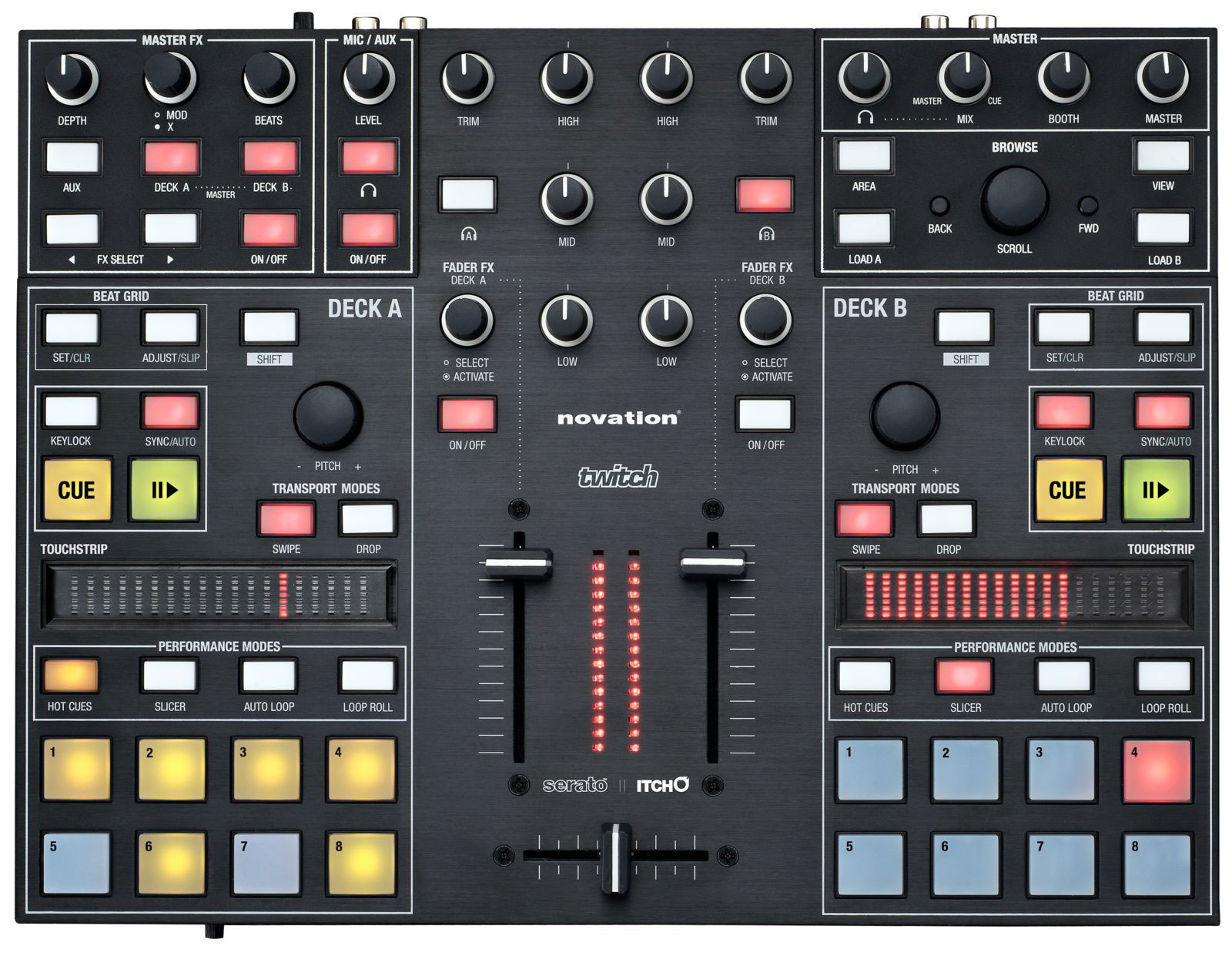
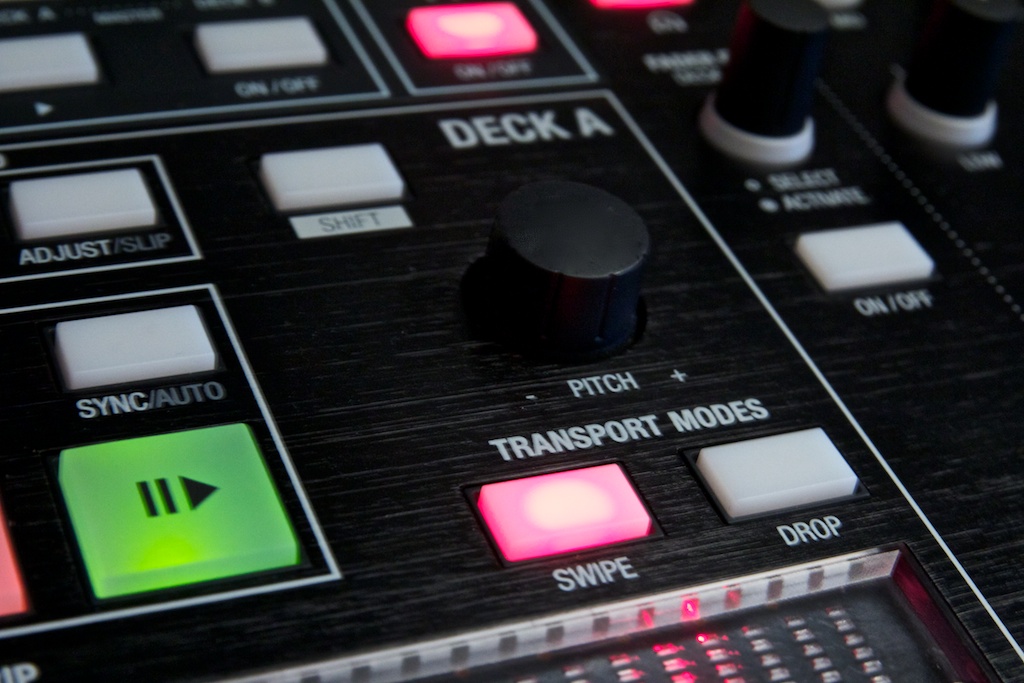
Dj Tech: Novation Twitch DJ Controller with Serato Itch

For too long, the DJ industry has been going round in circles – literally. Novation’s latest offering to the DJ world eschews the entire ‘wheels of steel’ principle and tries to show us another way… we took a look to see whether or not it’s the right way to turn.

SPECS

Product: Novation Twitch
Price: £399/$499
Connection: USB
Ships with: Serato Itch
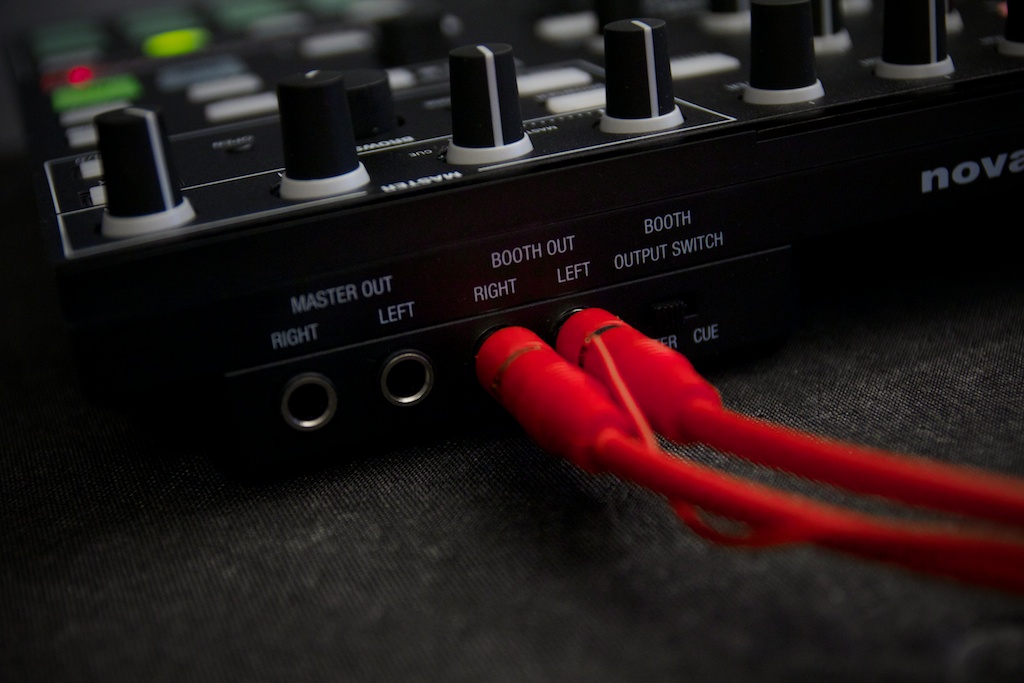
I/O: ¼” master, RCA booth, and headphone (3.5mm and ¼”) out, RCA and ¼” mic in.
Available: End of July

THE GOOD

  • Slicer mode is superb
  • Eminently portable
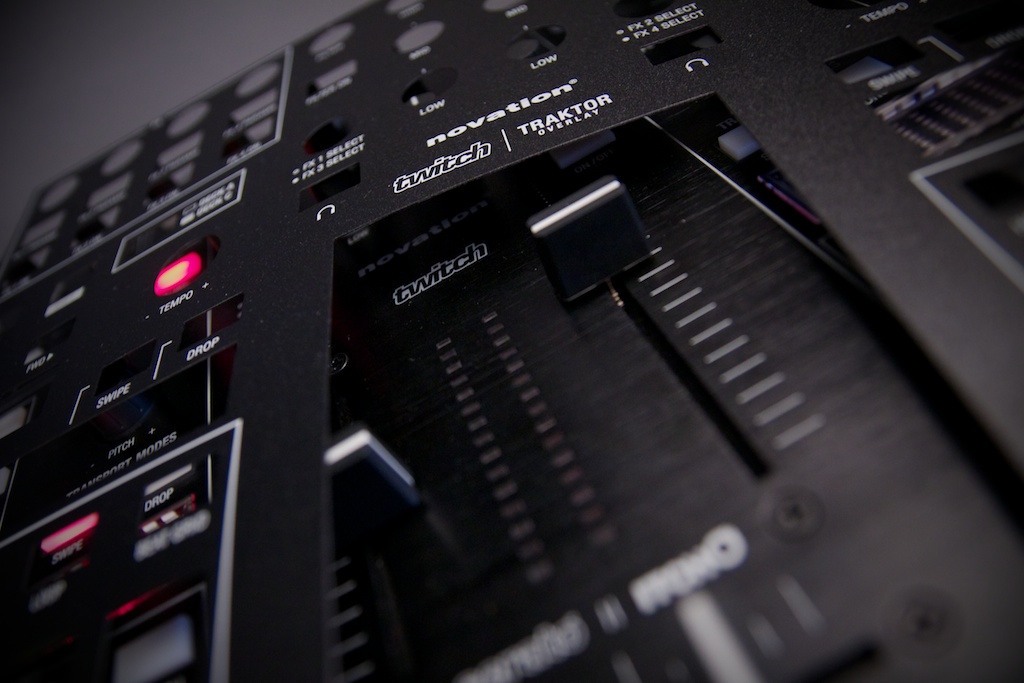
  • Professionally printed Traktor mapping overlay
  • Touch strip is a clever way to save space and facilitate easy adjustment of many parameters

THE BAD

  • Slightly loose channel faders
  • Lights are a bit dim in bright conditions

THE BOTTOM LINE

In daring to think outside the box, Novation have really come up trumps with Twitch. It looks good, feels sturdy, and the Slicer mode in Itch is a lot of fun.

THE UNIT


Twitch is small and light enough to sling into a bag with a distinct lack of fuss. Construction wise it’s actually quite similar to the NI Kontrol X1 and Maschine, with lightweight plastic body, a brushed metal fascia, and rubber buttons. Totally bus powered and with the audio interface onboard, portability is a high scoring area for Twitch.
Inputs and outputs are ¼” TRS for master, RCA for booth, headphones with both size connectors on board and a discreet input that will accept RCA input round the back and ¼” mic on the front. Booth output can be switched between master and cue operation, and all in all the audio quality from the 24/48 audio interface is both loud and clear.

It’s no mean feat to power a unit with as many flashing lights as Twitch, whose dashboard is somewhere between space shuttle and KITT (90s babies may, regretfully, miss out on this reference). The relatively small amount of juice that the unit can draw through USB means the lighting lacks a certain radiance in direct light, although it’s still clear.
The size of the unit really feels just right. Because the touch strip, faders and pads are all within easy reach of each other experimenting with tricks and effects feels natural. If I had one qualm it’d be that the main effects are in the corner away from the action, but even mulling that over made me consider that as a cue for the audience to really connect with you as a performer, a little movement around the interface is a good thing.

STARTING AFRESH


Twitch’s USP is the fact that rather than emulating the turntable based DJing paradigm, it focuses on buttons and touch strips to control the action. This might seem a small point to some, especially those that have never focused their attention on turntables or platters, but in operation it turns the Twitch experience into something that feels fresh and, dare I say it, pioneering. Invariably when confronted with a new controller, I go through the motions of exploring its strengths and weaknesses when it comes to scratching emulation and transferring the tried and tested DJing paradigm to its controls, and it usually feels like the manufacturer has had a very similar process during design. Twitch is completely different, and because there’s very little common ground between it and what we already know, I found myself immediately trying new things and exploring new ideas rather than rehashing (and often compromising) skills I learned on vinyl.

Of course I did try to see how the touch strip performed for scratching and manipulation… unsurprisingly the scratching sounds aren’t really worth playing with, as the small touch strip doesn’t give the accuracy required for anything approaching a party ready sound effect. That said the spinbacks sound great – we heard from Serato that despite the linear nature of transport in Twitch the deck is still modeled on a rotary platter, so flinging the playhead back and forth sounds pretty authentic.
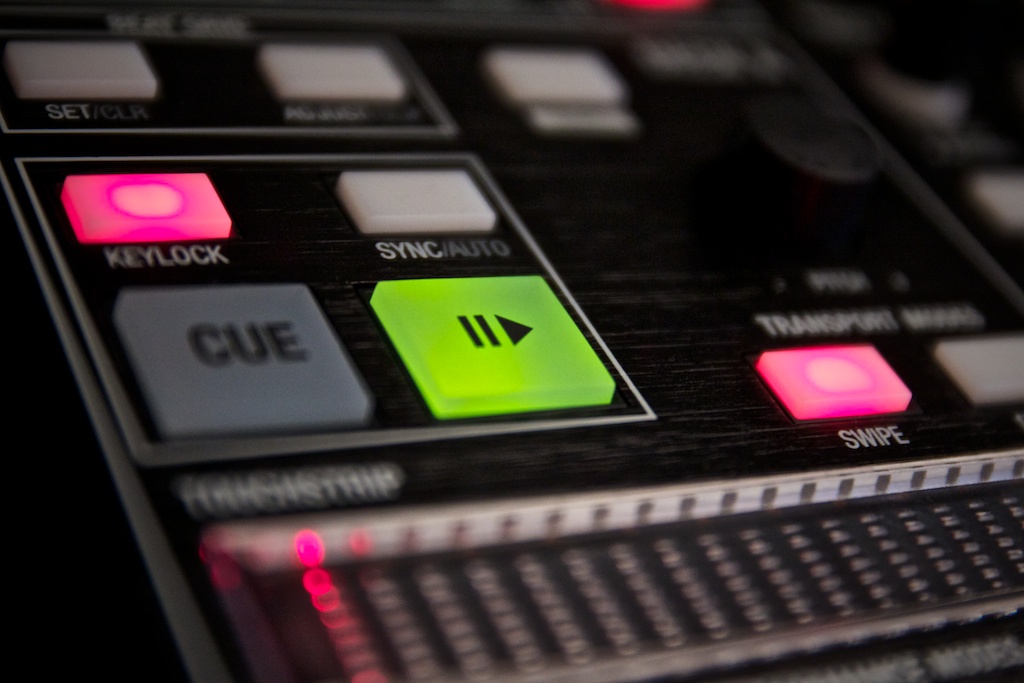
What the touch strip really shines for is fine pitch adjustments and seeking, and in a stroke of genius parameter adjustment of the pads using swipes and gestures; because the touch strip is in easy reach of the pads it allows for some complicated fills and transitions to come to life.

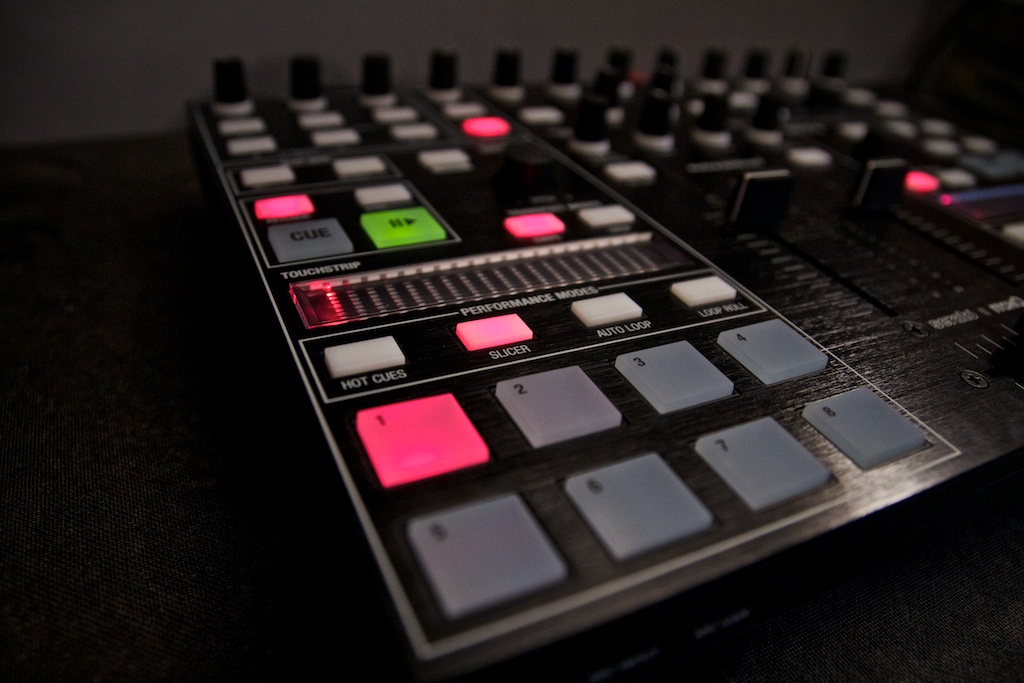
SLICER


Slicer mode works by creating a section on the track and splitting that section into eight evenly spaced cue points, which are triggered by the pads. There are two modes: one press of Slicer mode makes the section shift forward continuously, letting the track play as normal, and two presses actually loops the section. Section length can be adjusted with a pinch gesture, so if set to one bar you get to play with and rearrange 8th notes of the track, if set to two bars each pad lands on a beat, and so on. As the sequence plays, triggering a pad will rearrange the playing audio but the track will always resume where it would have been; it’s akin to loop roll. The timing of the triggering can be adjusted with a single finger swipe of the touch strip too, from extremely quick stutter effects when the pad is held down to the length of the slices or longer, which has the effect of quantising the button presses. There’s one more aspect of Slicer mode, and that’s that if you’re in the middle of a slice juggling pattern when the track would normally move on, it remains locked. Put all this together and you get a function that you can get really creative with, from things as simple as an advanced loop roll all the way to live remixing.

MORE FEATURES

Fader effects are another great addition to the unit. With the tap of a button the faders change from track volume to effect parameters, and the ergonomic advantages to having effects right in the centre of the action are huge. It really does highlight the limitations of Itch, though, if you’re used to complicated fader effects arrays like those facilitated by Traktor in the Midi Fighter Pro mappings, and I’m looking forward to the forthcoming Itch 2 release which should hopefully improve the effects support of the software line.
As a way round the long annoying ‘pitch fader conundrum’, Novation have plumped for a rotary encoder for Twitch’s decks, and it’s implemented fantastically. Single clicks of rotation will adjust the pitch by 0.01%, but acceleration compensation kicks in for fast turns and a quick half twist will shift the pitch 3% or so. Of course, manual pitch adjustment is becoming less and less important, but it’s still handy to have, and combined with the touch slider’s pitch bending capabilities it gives you, arguably, even more control than a CDJ when it comes to riding tracks with tempo drifts (on that note, here’s hoping the Itch 2 update allows for more advanced beat gridding).
The only build quality issue I have with Twitch is the faders, as the channel faders are perhaps a little bit waggly (that’s the technical term). The crossfader has about the same cut lag as a Pioneer DJM-800, so whilst it’s not perfect it does work for some cutting when using Twitch as an internal mixer for a Traktor Scratch setup, and something that I just started to really get to grips with before the review. At the moment I’m trying to squeeze a moment of genius out of my noggin that’ll allow me to hack together a Slicer mode for Traktor, but I have a nasty feeling it’s not possible right now. If and when it is, though, Twitch could really be amazing as a Traktor Scratch mixer (required purchase of a NI audio interface notwithstanding).

SUMMARY


Twitch is primarily an Itch controller, and the Slicer mode is a genuinely innovative feature that’s not on any other DJ software out of the box. That said, Twitch works very well with Traktor and Ableton Live (the touchstrip definitely feels best in Itch, though), and indeed there’s a pre-printed overlay for the included Traktor mapping in the box. The bottom line is that Twitch is still definitely a DJ controller, not a generic MIDI controller with DJ capability shoehorned onto its buttons, but it takes things in an interesting new direction. It’s a slice of forward thinking (geddit?) that’ll hopefully persuade other manufacturers to be braver with their designs.

Thursday, February 3, 2011

DJ Tech : Midi-to: New iPad app for Serato

Got an iPad and trying to figure out how to complement your DJ set rather than use it to DJ? There have been a lot of articles written (including one on this site) about using your iPad for digital DJing. While some of the apps that exist out there are pretty impressive (Mixr and djay are my favorite so far) most of them assume that you are going to use your iPad to control your whole set. While the portability and ease of use of this type of setup likely can’t be topped, if you already have a killer setup you probably want to use additional hardware to enhance your existing setup instead of replace it.

MiDi-to

MIDI-TO ($4.99 – iTunes App Store)

The Good: iPad app that extends all the major features of Serato Scratch Live (promised support for Traktor in the future). Plus since it is portable you can pick it up and work the crowd while tweaking a filter.

The Bad: Some minor latency due to the fact that it transmits over wireless. Only supported on Mac OS X Snow Leopard.

The Bottom Line: Great app if you own an iPad and want quick access to all of Serato’s features without having to spend the whole time with your finger on the mousepad.

Available in the app store

http://www.midi-to.com/

Created by a bunch of guys from Barcelona, this iPad app currently only supports Serato Scratch Live (although they are promising to support Traktor in a future release) and works over a private wireless connection which means no additional software or cables are needed. MiDi-to gives you control of practically every feature in SSL across three panels accessed from the top of the screen within the application. The Main panel accesses the 5 cue points of each deck, loop parameters, playback modes, the Ultraknob effects and 6 sample banks. The effects panel gives you access to all three DJ-FX presets per deck but you can’t get into the individual parameters to tweak the presets. The last panel gives very basic control of your library to allow you to tab through crates, select songs and load them onto a deck.

1. SETUP

Setup is pretty straight-forward although it does not equate to turning it on and rockin it out. Accessing the information panel gives you step by step instructions on connecting the iPad to SSL. The MIDI-to website also gives a friendly step-by-step video. I found myself watching this the first time I set it up because you have to set up an Audio MIDI Network on your Mac and a private network in your AirPort settings which are things the average user has probably not done before. The private network is handy though because it means you don’t have to have wireless access at the club for this to work. But this also becomes the app’s only drawback. There is a small but noticeable latency when triggering a button. This isn’t an issue for the effects or library panels but for the main panel where you need to trigger samples or cue points very quickly then you will start to notice the delay. I found I got used to it after a few sessions but do you really want to train yourself to work around a small flaw?

2. LAYOUT

The size of the iPad screen allows the buttons on the interface to be the perfect size and bright colors let you know when a feature is turned on. The only ones I found to be a bit small were the sample buttons across the bottom. If you find yourself doing fast mixes and want to trigger some samples in-between you might find yourself accidentally hitting a cue or loop button instead or just hitting the black bezel around the iPad screen (which is a much better outcome – believe me).

MiDi-to effects panel

The effects panel is where I find myself spending most time during a set. I had never really played much with the DJ-FX panel in SSL because I didn’t have a controller to match and I try to avoid looking at my laptop as much as possible (more on this later). But with the easy-to-use sliders and a pull-down menu for each effects bank plus one-touch on/off buttons I’m now addicted. And since the iPad is so portable I can pick it up and go crazy with the effects while working the crowd at the same time. I could literally walk out in the crowd and start controlling anything in SSL. Not that I would ever do this, but just knowing that I could stroll back to the bar to get a drink and trigger a horn-flanger at the same time is pretty cool. Plus it is a lot easier to turn on an effect in the middle of a mix and push the effect slider up (say on a high-pass filter) all while keeping one hand on the fader. I find this hard to do on a standard mixer with built-in effects due to the closeness of my hands and even harder if I have one hand on my laptop mouse controlling the effect in the SSL software directly. I like being a little more spread out and having some space as well as having a large visual of what effect is turned on and the relative mix of the effect.

CONCLUSION: SOMEWHERE ELSE TO PUT YOUR HANDS

That is really where this app excels. I’m a visual guy. In a dark club I need constant visual feedback, with a very quick glance of what is turned on or off, be it a loop, sample or effect. I’m also prone to becoming stone-faced and glued to my laptop screen if I am not careful. This does nothing for the crowd. Anything that moves my focus away from the laptop and onto another surface causes me to remember there is an audience listening and a little interaction with them does me some good. And it never hurts for the crowd to actually see what you are doing, especially in clubs where DJ booths are elevated. Holding the iPad up and cranking an effect makes the crowd feel a little more involved and connected (as silly as that may sound to some).

CRITICAL DATA

  • Reviewed: MiDi-to version 1.0.1
  • Price: US street price ($4.99 – iTunes App Store)
  • Communication (hardware) / Operating System (software): iPad and OSX for Mac only
  • Available: Now

About the Author: Jeremy has been DJing for over 10 years as Kid Kardia in all different kinds of venues across the country and currently resides in Denver, CO.

TRAKTOR ALTERNATIVE:

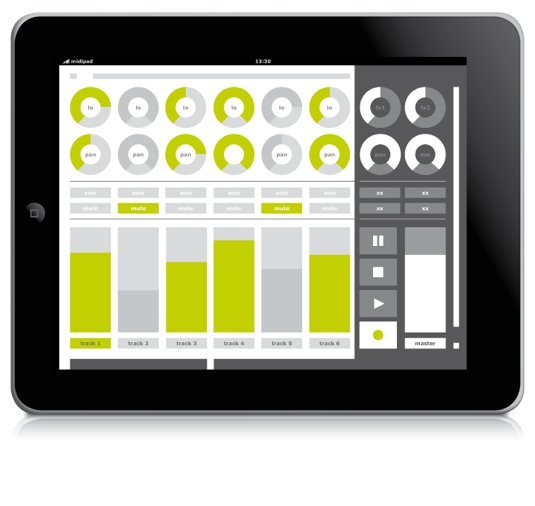
A similar app that is a more general controller for Traktor is the midi-pad. There is a great article on the software at CDM.